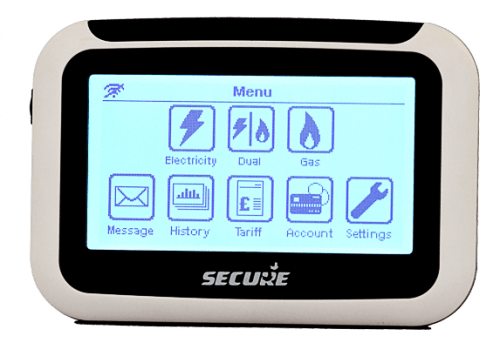
The PAYG system comes in two parts. There is a consumer unit which will be installed in a cupboard, and a portable in-home display unit - the Pipit. The consumer unit stores and transmits your secure data and the Pipit allows you to access your pay as you go credit details and your energy consumption. It also stores your tariff details and has a messaging service.
The Secure Pipit In-home Display unit uses 2 x AAA batteries and has a USB mains charger. It can help you save money and energy by looking at when and how much energy you use.
All you need to do is keep credit on your Liberty Connect and your heating and hot water services will be maintained. Your Pay-As-You-Go heating and hot water can be topped up online, over the phone, by direct debit or by cash in a PayPoint shop.
Can't get to the shop? Internet playing up? There is no need to worry because the PAYG system has an Emergency Credit function for those times when you are unable to top up your heating and hot water energy credit. This will allow you to go overdrawn on your account. The next time you top-up the emergency credit will then be repaid.
It also has a Friendly Credit function which means should you run out of credit in the evenings, at the weekends or on Bank Holidays your supply of heating and hot water will not be interrupted. Once the friendly credit period has ended (e.g. at 9am on a Monday morning, after the weekend friendly credit period) your system will switch to normal operation. You will then have to top-up to repay any friendly credit and to make sure your heat and hot water continues.
Managing Your PAYG Account Using Your Pipit 500
Understanding the main display:
- Network Connection Status
- Menu Button
- Fuel Icon
- Rate of Consumption Indicator: This indicates your rate of consumption: Economy (ECO), Medium (MED) or High (HI). When the indicator is in the ECO or MID range, your current usage is within your £ per day target. If the indicator is in the High range, you will exceed your £ per day target should the current level of consumption be maintained. (You can set your daily target from Menu>Settings>Target menu).
- Fuel Selection: This can be used to change the Home-Screen view between fuels if needed.
- Meter Operating Mode Indicator: prepayment (P), credit (C), Emergency Credit (E) or Friendly Credit (F) mode.
- Unit Selection Button: Press this to toggle between kWh, £/h or CO2 kg.
- Instantaneous Numerical Value: This shows real-time value of the selected unit; energy cost per hour (£/h) or kilowatt hour value (kWh) or carbon
How to top up when payment has not automatically been added to the meter
You will need your energy payment receipt to top-up the amount in your meters account. If your payment has not been received by your meter, selecting the Payments icon from the main menu allows you to access the payment screen to top up manually; if you are a dual-fuel consumer, Pipit will give you the option to select the fuel type first. In the transaction screen, enter the numeric vend code printed on your payment receipt.
How to check your account balance
If you are a prepayment consumer, you can check the balance in your meters account from the Transaction screen. Press the Payment icon from the main menu, select the desired fuel type i.e. electricity or gas and then press the History button to see the balance as shown below:
Your meter account balance is displayed at the top right and the list of the last five payments made in your meter account will appear below along with their payment dates.
How to activate your Emergency Credit (EC)
You can activate Emergency Credit (EC) either from the Low Credit or Zero Credit warning screens. Once the credit in your meter’s account reaches the Low Credit threshold, EC will be made available for you to activate. If you decide not to activate it, a second warning screen will appear when there is no more credit left in your meter which will again offer you the opportunity of activating EC.
If you press OK on the above ‘Supply Off’ warning screen, then your supply will disconnect and the dial on the Home screen will be replaced with the message as shown here.
From any of the above screens, press the E-Credit button to activate EC. Once EC is activated, the ‘Supply Off’ message on the home screen will be replaced with the ‘Emergency Credit ON’ message as shown here.
How to read your messages
If you have received a new message, then the icon will appear in the top right-hand corner of the Home screen; touch the icon to see the message page as shown below.
You can also access your messages from the main menu by touching the Messages icon.
Press the View button to see each message. The number of unread messages is also indicated on the top right-hand side of the Messages screen.
How to view current usage
The Home screen gives a visual indication of your real-time energy consumption (kWh) or energy cost per hour (£/h) or the resulting carbon emissions (CO2kg). Use the Unit selection button to display the information you wish to see. The right-hand section of the screen displays your energy consumption graph for today with a comparison to yesterday as well as the pre-set consumption target threshold; use the Fuel selection button to select the fuel type and the Unit selection button to view £/h or the resulting carbon dioxide emissions CO2kg
View your historical energy consumption graphically
The History icon from the main menu allows you to view your energy consumption pattern graphically. In the above screen you will be able to see your half-hourly consumption pattern over the past 24 hours, and daily
consumption along with your daily target threshold. You can set your own daily consumption target (Settings > Target) threshold to help you control your energy consumption and keep your energy bills low. Use the arrow buttons on either side of the graph to scroll backwards and forwards through the data On the same screen you can also see your daily, weekly and monthly consumption patterns by using the View button, or you can check your hourly rate of consumption (£/hour) and carbon emissions by using the Unit selection button.